Link previews
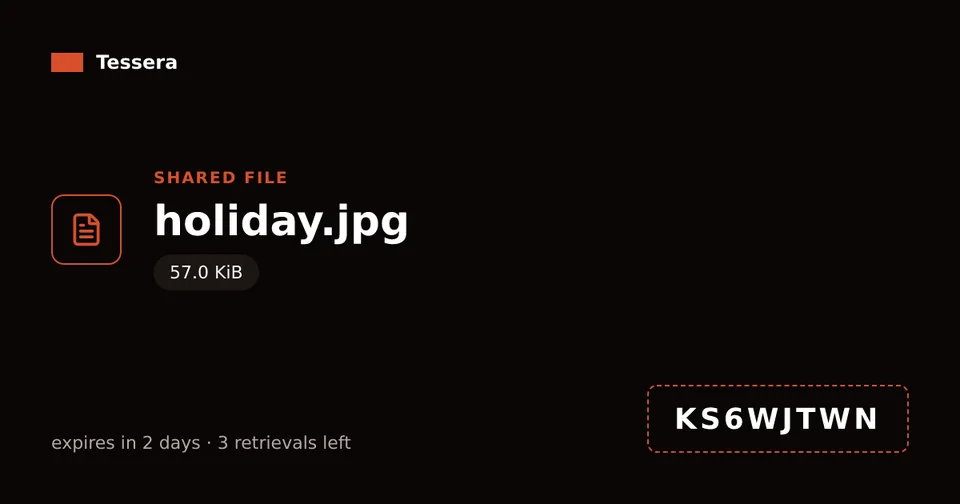
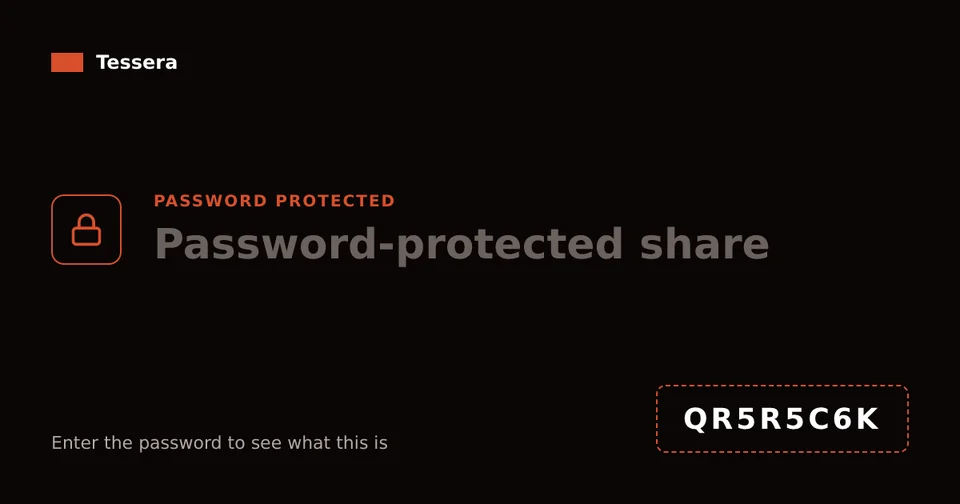
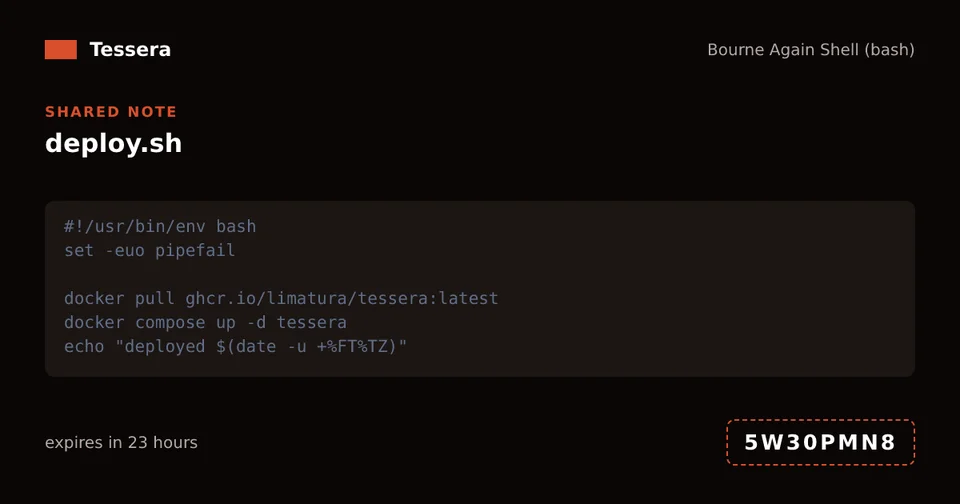
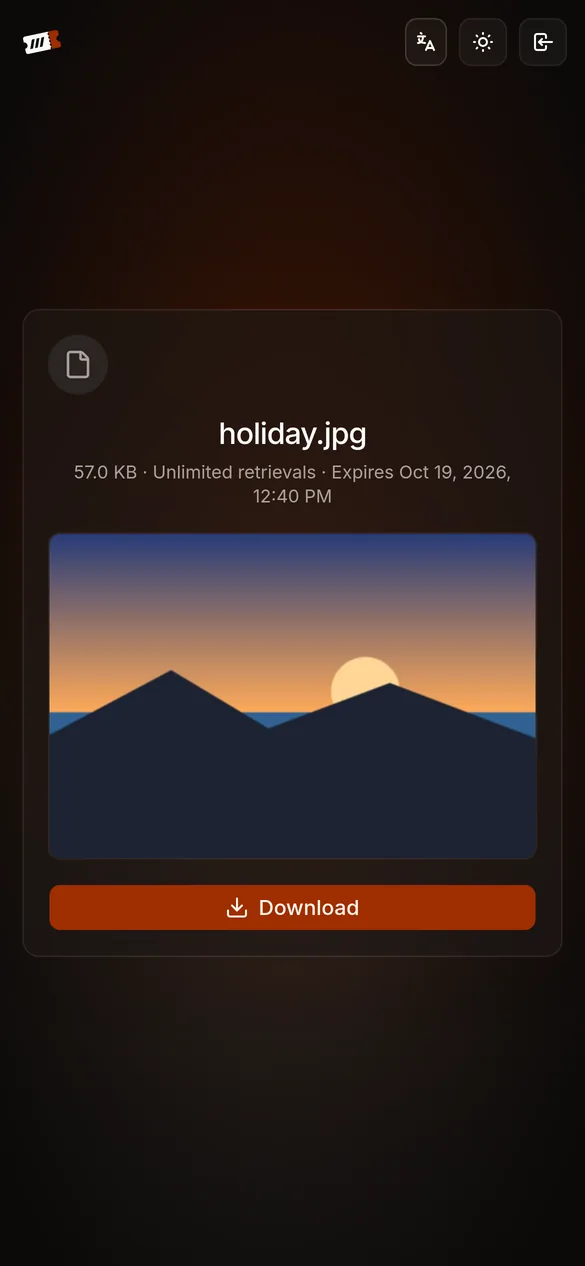
Paste a link into a chat and the server draws a card for it. Opening the preview doesn’t use up a download, and a password-protected share shows only that it is locked.
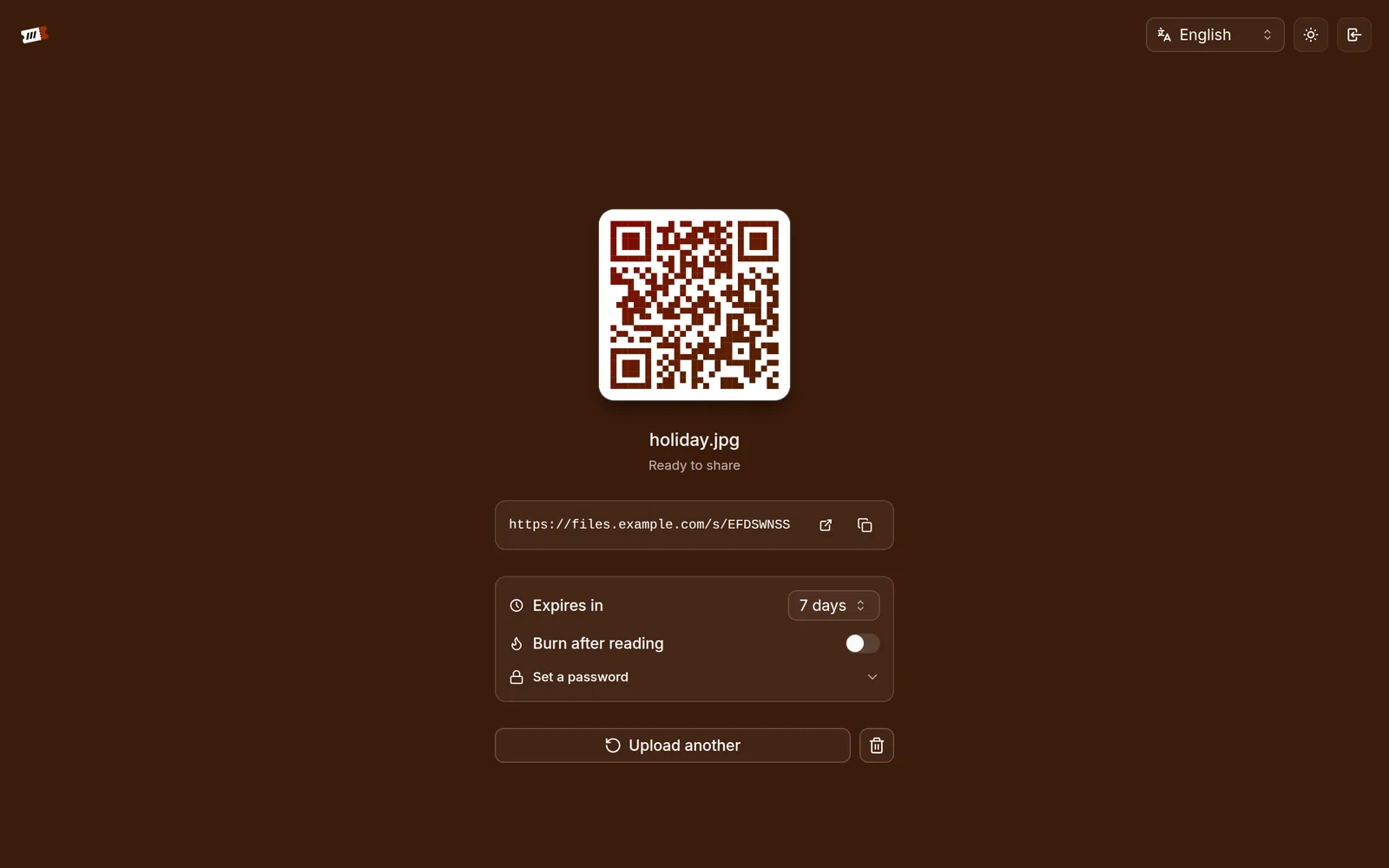
Upload a file and get a link and a QR code. Whoever you give them to can download the file until the share expires or its downloads run out. It runs as one Docker container on your own machine.
docker run -p 12923:12923 -v tessera-data:/data ghcr.io/limatura/tessera:latest
{"level":"WARN","message":"created the first administrator with a generated password; sign in and change it","username":"admin","password":"d8558ce68d08…"}
{"level":"INFO","message":"listening","address":"0.0.0.0:12923"}
# Open http://localhost:12923 and sign in as admin with the password above.
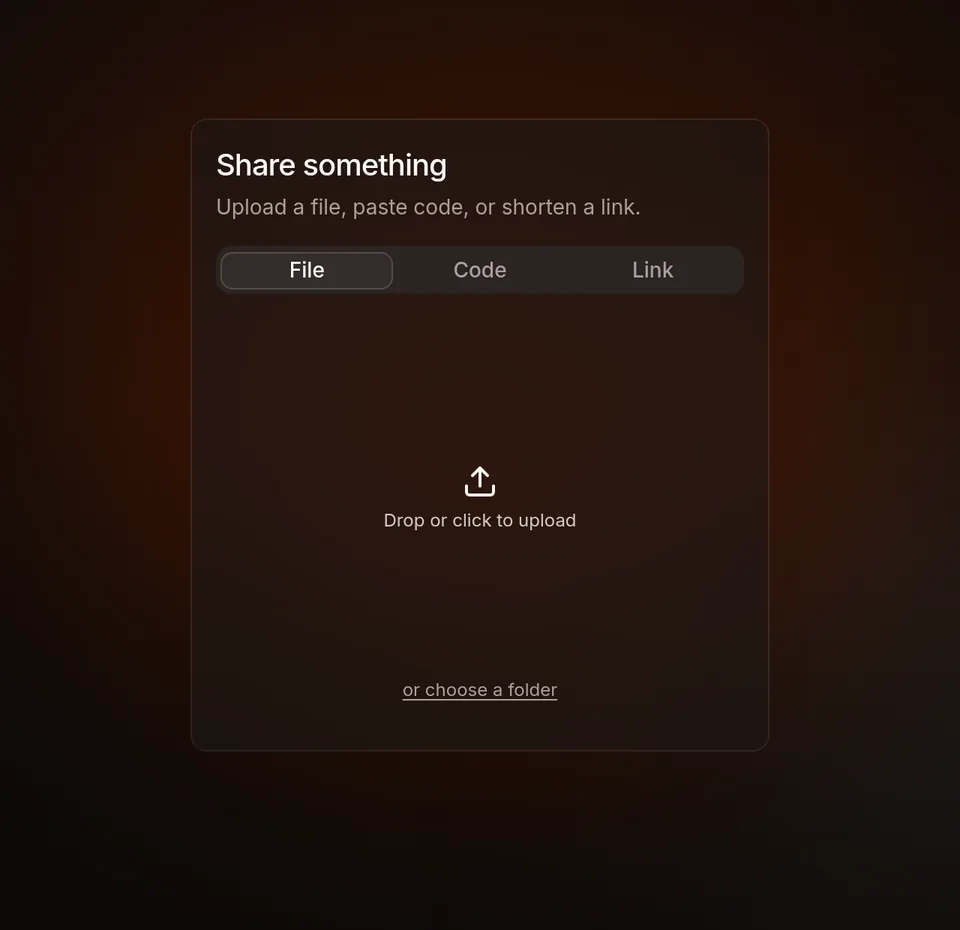
Drop files or a folder on the page. You can also paste code or shorten a link.
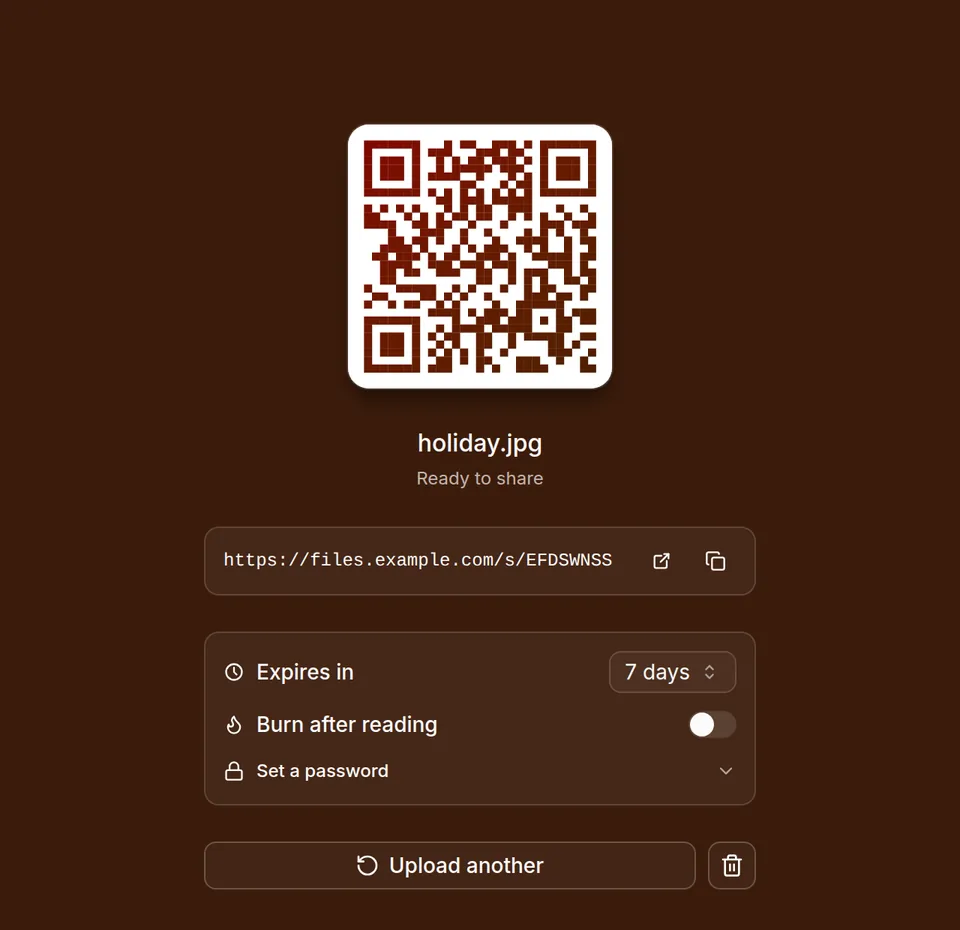
You get a link and a QR code. The eight characters at the end of the link are the retrieval code, short enough to read out. Set the expiry, burn after reading or a password right there, and change them later.
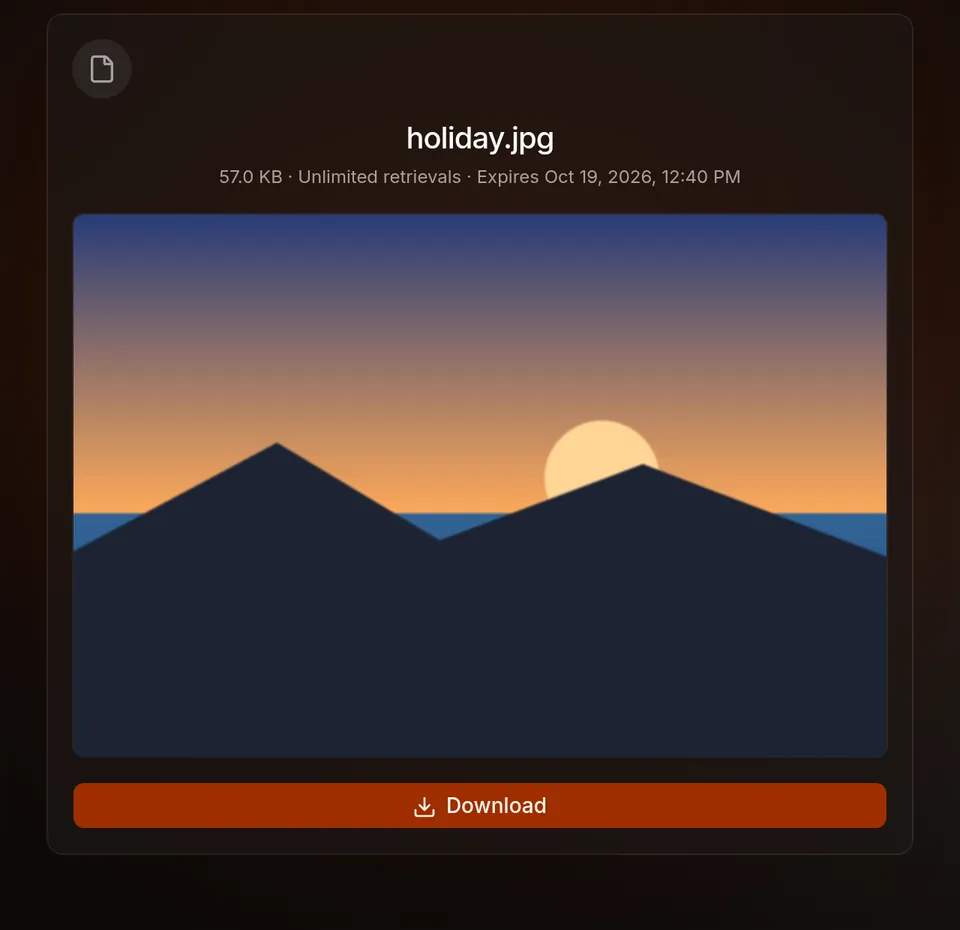
The recipient opens the link, or types the code on the front page. Once the share expires or runs out, the link says so and the file is deleted.
Paste a link into a chat and the server draws a card for it. Opening the preview doesn’t use up a download, and a password-protected share shows only that it is locked.
Case, spaces and hyphens don’t matter. O, I and L are read as 0, 1 and 1.
Until the password is entered, nobody sees the file name or size.
If the connection drops, the upload continues from where it stopped.
Optional. Files are encrypted before they leave your machine, and the server never has the key.
Optional. Uploads go to ClamAV or your own scanner before anyone can download them.
See how much is stored and where, manage accounts, invite codes and roles, and change settings without a restart.
Administration guide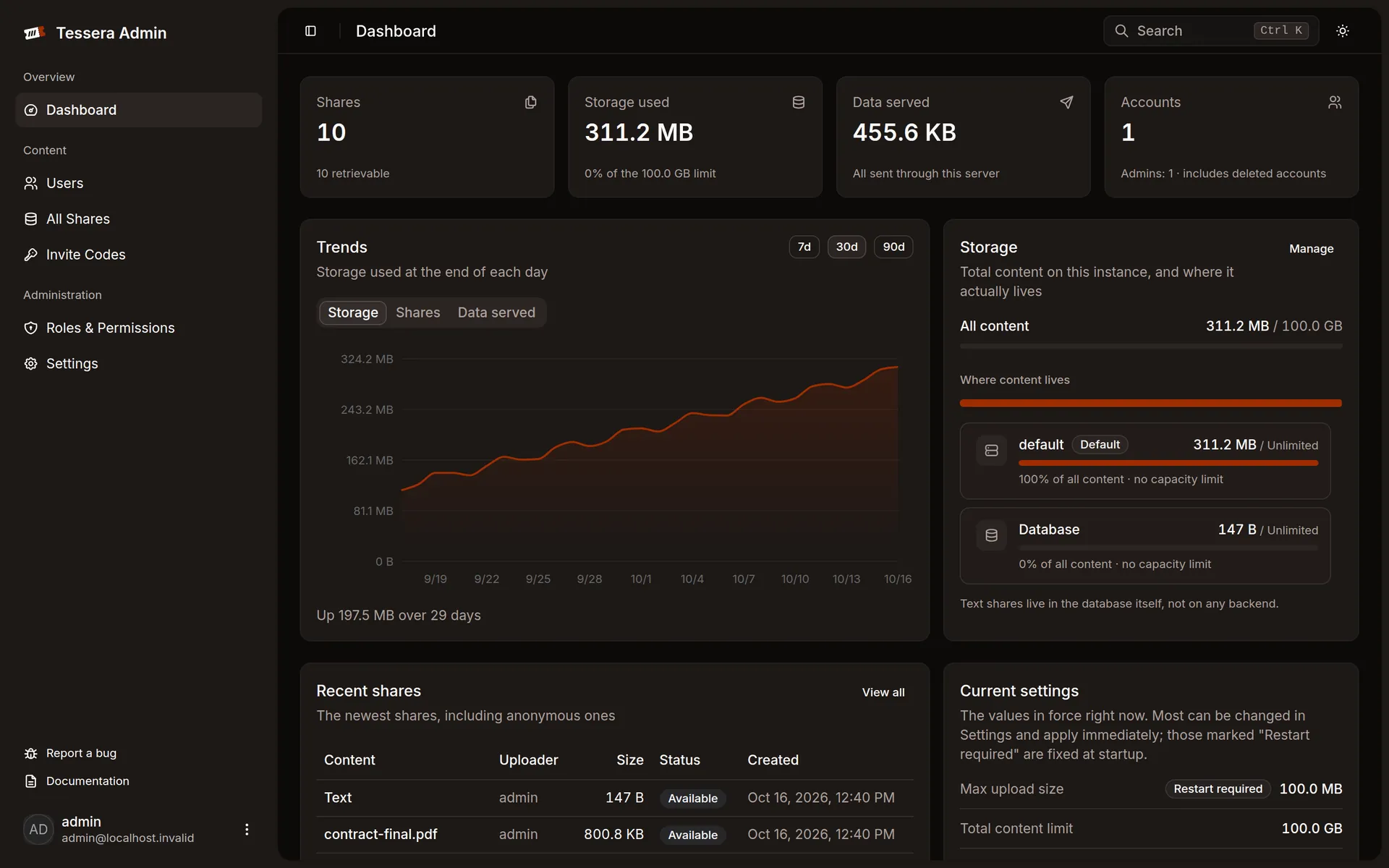
Start with a folder on disk. Add buckets when you need them; files already stored stay where they are.
The default. Nothing to set up.
data/blobsWhen the disk is small, or a bucket is cheaper.
s3://bucketFor a file larger than any single bucket.
The upload page and the admin panel use the same API you can call. Every endpoint is in the API reference.
Three steps on any machine with Docker.
One container, with a volume on /data so nothing is lost when the container is recreated.
$ docker run -d --name tessera \ -p 12923:12923 -v tessera-data:/data \ ghcr.io/limatura/tessera:latest
The first start prints a generated admin password in the log, once.
$ docker logs tessera 2>&1 \ | grep password
Open port 12923, sign in as admin and choose a new password. Everything else is set in the admin panel.
http://localhost:12923